

When accessing the address by clicking on link https://cat.eduroam.org/?idp=164 or by scanning QR code

you get the site that helps you to connect to eduroam with a nice helper program.
If the correct operating system has been identified, please click on it.
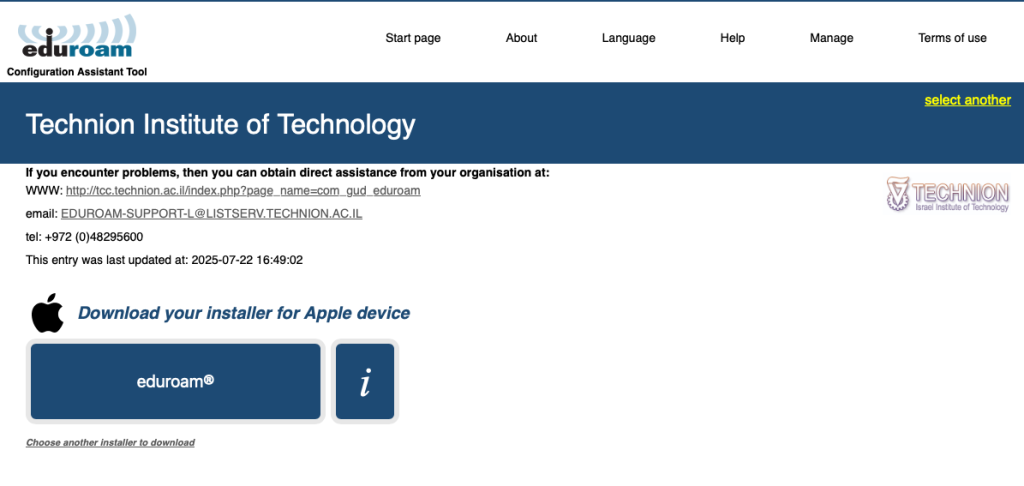
or:
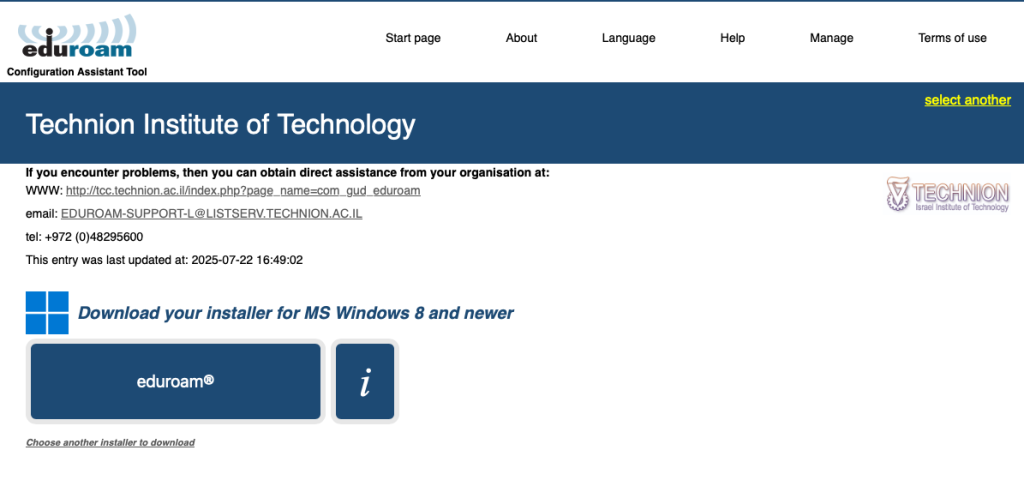
If you wish to choose a different operating system, please click on “Choose another installer to download” link below the big button to receive a full list of available operating systems:
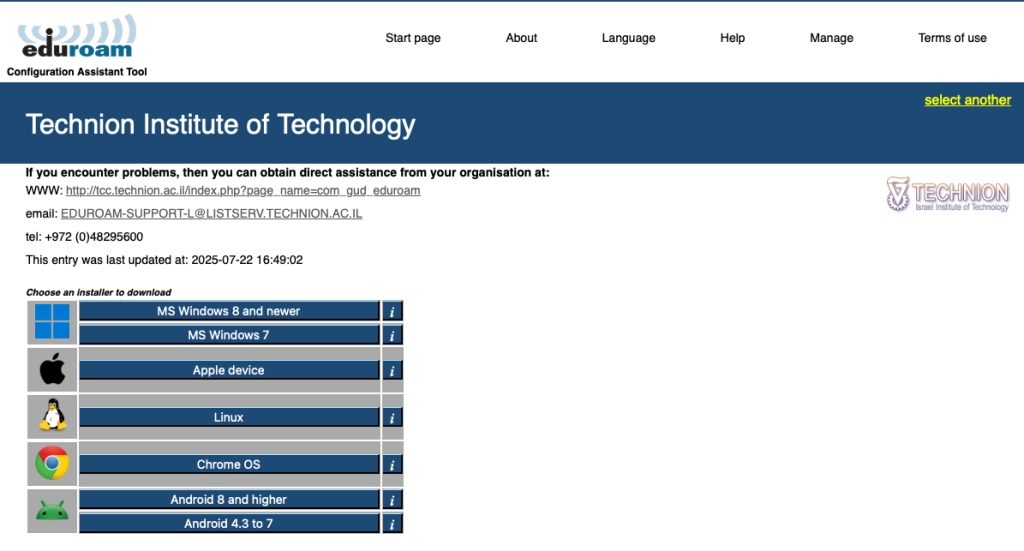
Clicking on the appropriate operating system will download the appropriate executable file or profile in a case of smartphone OS.
For macOS:
Wireless profile will be downloaded and put it into System Settings —> Device Management:
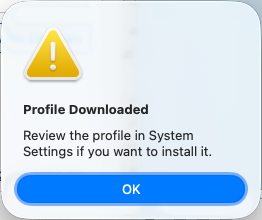
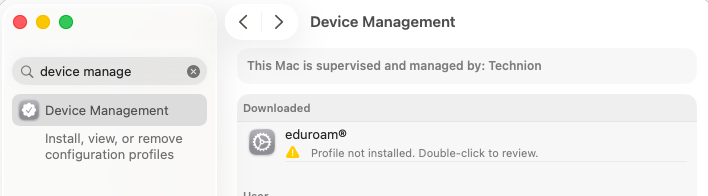
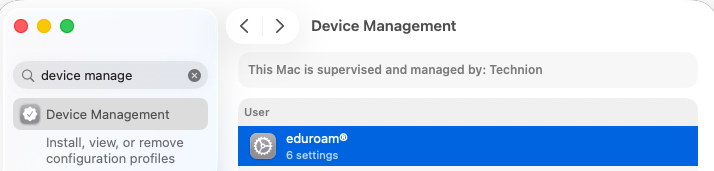
Open System Settings and search for device manage. Click on Device Management and you will see new profile in waiting mode:
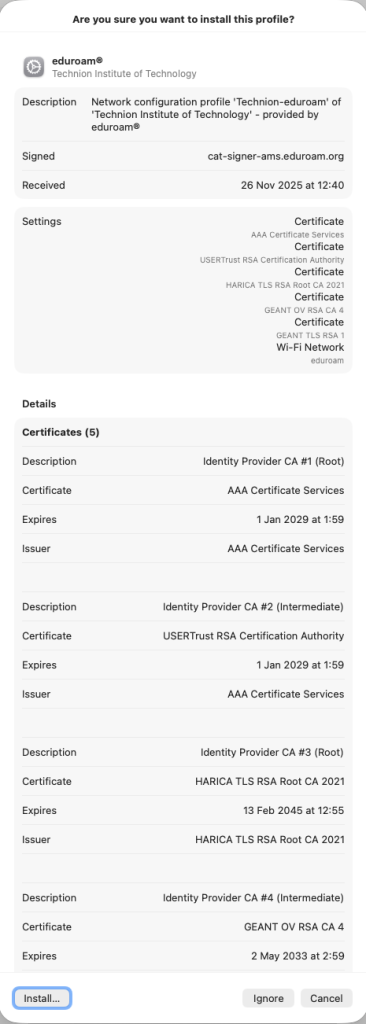
Double-click on eduroam, check that it looks like one on a picture below and then click on Install… button:
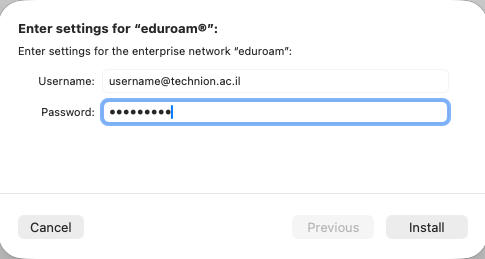
Then enter your full Technion credentials (the same you use for Office 365) and then Install button:
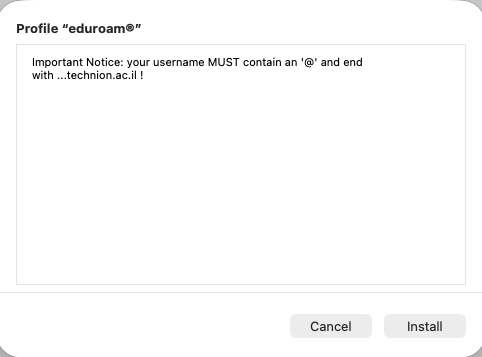
Read the warning and press Install button:
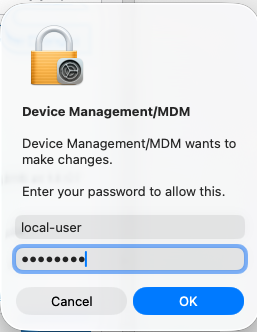
Enter your local user password and press OK button:
Now you can see new profile installed:
Now try to connect to eduroam.
For Windows:
While running downloaded eduroam-W10-Technion.exe, the following screen appears:

Click on Next.
The following screen appears:

Click OK and an authentication windows appears.
In the Username field please enter:
- For students: username@campus.technion.ac.il
- For academic and administrative staff: username@technion.ac.il
Enter your password twice. Click on Install and the installation will be done.

Installation progress window appears:

Click on Finish.

Now your device has eduroam profile installed and you can simply connect to eduroam by clicking on eduroam in list of available wireless networks.

Wait for next state of the connection — Connected, secured.

Important note: next time you change your Technion password you must repeat this process from the beginning.