Division of Computing and Information Systems
Division of Computing |and Information Systems
  • Services
    • Artificial Intelligence (AI)
    • Backup and Restore
      • Backup Policy
      • Joining and Installation
      • Restoring data from backup
      • Mailbox Backup
    • CIS Shop
    • Cloud Computing Services
      • Office 365
        • SharePoint Online
        • Central email at the Technion – Cloud services Office 365
      • Microsoft Azure Service
      • Video Conference service using Zoom software
    • Communication Services
    • High Performance Computing (HPC)
      • HPC Services
        • Zeus CPU Cluster
        • Zeus DGX Cluster
      • HPC Resources
        • CPUs (Zeus) – Utilization Graphs
        • GPUs (Zeus) – Utilization Graphs
        • Active Table
      • HPC Documentation
        • Work procedure
        • Accounts
      • HPC Support
      • HPC Rates & Billing
      • HPC Software
        • Zeus Cluster Supported Software
      • IUCC HPC Cloud
    • Monitoring
    • Servers
      • Account Opening Guide for a computer account at the Technion
      • Authentication Services in Central Servers
      • Hosting physical servers
      • Hosting virtual servers
      • Virtualization
        • Server virtualization
        • Azure Virtual Desktop service for students
    • Software
      • Software Catalogue
      • Software Acquisition
      • Microsoft Software Licensing
    • Storage Solutions
      • Central storage
      • OneDrive Cloud Storage
    • Technion Email
      • Central email at the Technion – Cloud services Office 365
      • Mailing Lists
      • FAQ’s
    • SECTIGO Certificate System
  • Support
    • FAQ-Frequently Asked Questions
    • ESS/MSS System – Self-Service for Employees and Managers
    • Training Aids – Miscal Project
    • TeamViewer Installation
    • Remote Desktop Connection
    • Faculty Engineers
    • Macintosh Support
    • Antivirus
  • Information Security
    • User Information
    • Security alerts
    • Safe Surfing
    • Privacy in social networks
    • Password management guide
    • Password Management
    • File Encryption Guide
    • Tips for using Zoom
    • Avoid and report phishing emails
  • About
    • Directions to CIS
    • Contact Us
    • MyCIS
    • People
  • ע
Division of Computing and Information Systems > FAQ-Frequently Asked Questions > Email, cloud services, and communication > Technion Email (“Cloud 365”) > Instructions for using Thunderbird and Gmail for Technion email
FAQ-Frequently Asked Questions
  • MainFrame system
  • Grades System
  • Personal computing
    • My computer is slow, what should I do?
    • The computer does not work, what to do?
    • Who is eligible for the services of a technician from the division?
  • Moodle
    • Entering the moodle
    • Forgot password
    • Who do you turn to with problems with the model?
    • Have you signed up for a course and haven’t signed up for Moodle yet?
  • SAP System
    • How do I know which version of SAP is installed on my computer?
    • Can I enlarge fonts in SAP?
    • I have several transactions that I use every day. Can I add them to favorites?
    • I have a lot of transactions in favorites. Can I file them?
    • Can I rename the transaction on my favorite?
  • K2 system
  • Upgrade system – grade management
    • Registration for professions and timetable (UGPortal)
  • Computer farm
  • Backups and restores
    • How do you recover lost material?
    • How do I join the backup service?
    • How much does the service cost?
    • What is the backup policy?
  • Moodle
  • Ordering and installing software
    • Matlab installation
    • Problem with Mathematica license
    • Software for student use
    • Technion Shopping Cart
      • How do I purchase software?
      • Who is eligible for the software in the Technion Shopping Cart?
      • Which software is included in the Technion Shopping Cart?
      • Matlab
    • Microsoft Software
      • Procedures for receiving Microsoft software at the Technion
    • Microsoft Azure Dev Tools for Teaching
  • Zoom
  • SAP Portal
    • Employee self-service
      • Training videos – employee portal
      • Updating the mobile phone in Technion systems
      • No “Employee Self-Service” tab appears
      • Corrections of entry and exit hours
      • Absence reports
      • Closing a month for an employee
      • Working time review
      • Questions about logging in
    • What is my login information (username/password)?
    • Executive self-service
      • How to know if the employee has closed for a month?
      • How can I view an employee’s working hours before approval?
      • The employee’s request does not reach the manager, why?
      • How do I change the number of hours for approval when closing a month?
      • I am missing employees on the staff list, what should I do?
      • The staff list shows an employee not mine
      • Is it possible to put in some budgets to close the month
      • Why doesn’t the budget appear automatically when an employee is approved?
      • Can I reject/approve requests from a group of employees together?
      • How do I make sure I no longer have pending approval requests?
    • The login page does not load
    • What browsers are supported?
  • Panopto
    • Change viewing speed
  • Identity and Identification
    • Enabling Strong Identification (MFA) Guide to Microsoft Services at the Technion for Students
    • Vehicle Entry System
      • Obtaining permissions to use the system
      • Restrictions on entering login approvals
      • Renew permission after moving between dormitories
      • Certificate limits and quotas (for undergraduate students only)
      • Connection and system usage problems
    • How to order a student card
  • I started my studies, what software should I purchase?
  • Video lectures
  • Information For New Students
    • Information for new students on the Ugportal undergraduate studies website
    • Update a personal password
    • Technion mobile app
  • Students Accounts
    • Guide to Opening a Student Account
    • Tuition information
  • Open a new user account
  • Information & Consulting – Software
  • Email, cloud services, and communication
    • Technion Email (“Cloud 365”)
      • Username and personal password
      • Set up email on mobile phones
      • Connect using your web browser
      • Connect using Outlook
      • Set up email forwarding
      • Common login errors
      • Set up outgoing email as a replacement for Roger
      • Instructions for using Thunderbird and Gmail for Technion email
    • Office 365 cloud services
      • How to connect to mail in Office365 from iPhone/iPad/Android devices
      • Expired password
      • Set up email in Outlook 2016 for Mac OSX
      • Set up email in Outlook for Windows
      • Set up Mac Mail for Office365
      • Outlook mobile app
      • Set Up Thunderbird for Office365 Using IMAP
      • Install an Office365 calendar in Thunderbird software
      • What happens to my account if it is no longer used for email communication?
      • HOW DO I DOWNLOAD AND INSTALL THE VERSION OF OFFICE GIVEN TO US?
      • How do I back up/use the contents of the existing box?
      • Guidelines for working with OneDrive
      • How to migrate IMAP users to the cloud (for computing engineers)
    • Mailing lists
      • How do I create a mailing list?
      • How do I manage my mailing list? (web interface)
      • How to send an email to a mailing list?
      • I’m not receiving mail from a mailing list
      • How do I manage my mailing list? (via email)
    • VOIP-Telephony
      • VOIP phone management (phone, contacts, and call forwarding settings)
      • Managing phone settings with the Jabber app
    • Communication and Internet connection
      • Wireless communication
      • Instructions for making the settings on the computer for working in the secure WIFI networks at the Technion
  • Information Security
    • Firewall
      • Open services in a firewall
    • Email filtering
      • How does the system detect spam?
      • Can I control the filtering policy?
      • Blacklist / Safelist
  • DropBox
  • Additional Services
    • Web Development
      • Web Development
      • How do I publish a personal website on the Internet?
      • Website Accessibility
    • Alumni Association
    • Technion Library Portal
      • Technion Library Portal
      • BookMe system
    • Student dormitories
      • Dormitories for couples or families with children
      • Dormitories for singles
      • Login to the dormitory registration system
    • Purchasing Issues Table
  • Students services system
  • Common Video Troubleshooting
  • How do I transfer heavy files?

Instructions for using Thunderbird and Gmail for Technion email

You can use Gmail, Thunderbird to send from your Technion address.

Here are the necessary settings:

Set up your account via Thunderbird

  1. Open Thunderbird and click Email


   2. In the screen that opens, enter the desired display name, email address and Technion password (uniform identification details) and click Continue.

  1. In the screen that opens, click on the Install button to install

The component that enables the actual link to the Exchange server

  1. After entering the details of the Technion account, the following screen will appear.

Click Set as Default.

Set up your account via Gmail

  1. Open Gmail in your browser.
  2. Tap Settings (found on the screen in the upper-right corner).
  3. Click on the “Accounts” tab, and on “Import or Accounts“.
  4. Select “Send mail as” and click “Add another email address“.
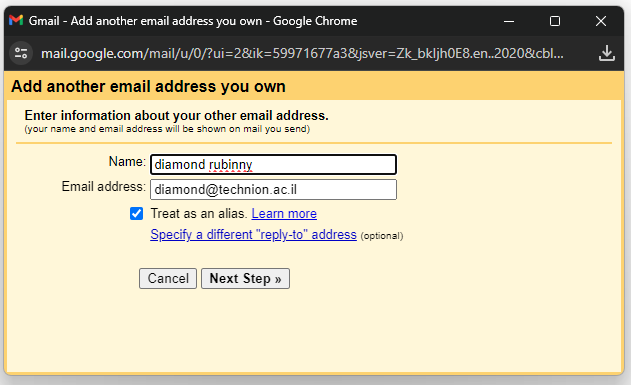
  5. Enter the display name as well as the Technion email address, according to the following screen:
  1. On the screen that opens:

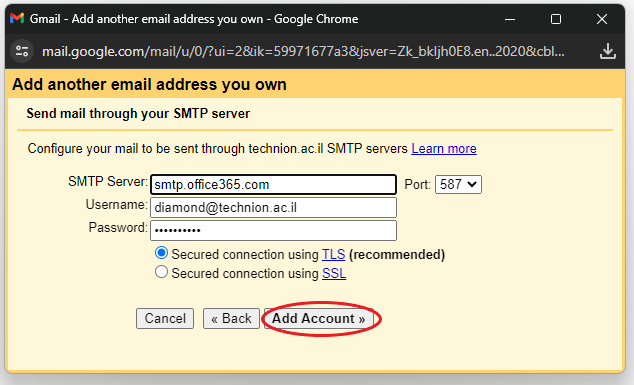
In the field “SMTP Server” – the following line should be inserted: smtp.office365.com

In the username – type in the Technion email ( username@technion.ac.il ) and password.

then click “Add Account“.
  1. Important!

For anyone with “two-factor authentication”  – MFA –

You must perform an additional step to create an app password through Security Settings in 365.

Here is the explanation:

Log in to https://outlook.technion.ac.il website and log in with your Technion account and password.

After logging in, click on the image/initials on the left and a menu will open to choose from.

Click on “My Account“.

In the screen that opens, click on “Security & privacy” and click

“Create and manage app passwords“

On the screen that opens, click “Security info”  then click “Add method“
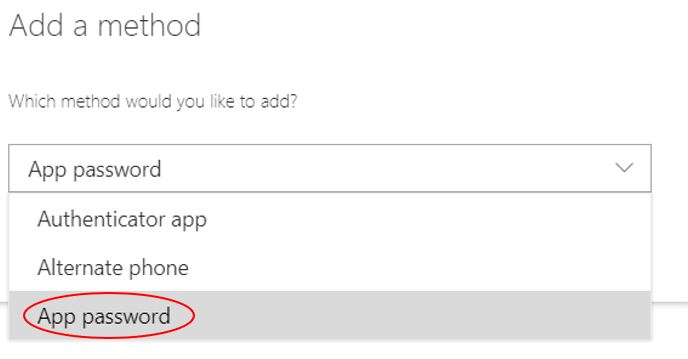
In the screen that opens, click on the box and select “App password” and click add

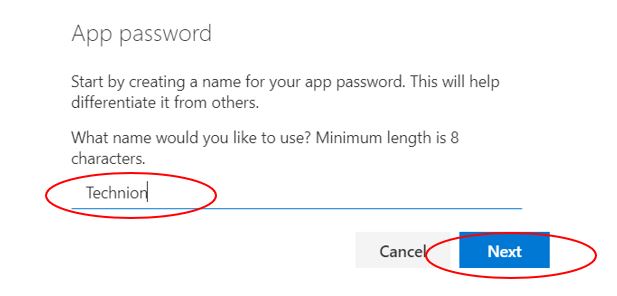
In the window that opens, type any name for your eight-character app, and click Next.
Now the system will generate a random password.

On the next screen, click  to copy your password.

* It is very important to save the password because after closing the window you cannot view the password again.

Now paste the password in the “Password” field and click “Add Account“.

© All rights reserved to Division of Computing and Information Systems
  • Accessibility Statement (heb)
  • Privacy Policy
  • Phone Directory
  • Site Map
Font Resize
Accessibility by WAH