

Overview
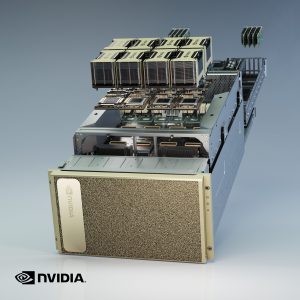
Cluster of 9x A100 DGXs. Each DGX has 8 A100 GPUs.
Work scheduling is done using SLURM.
Nvidia A100 GPU’s introduces groundbreaking features to optimize inference workloads. It accelerates a full range of precision, from FP32 to INT4. Multi-Instance GPU (MIG) technology lets multiple networks operate simultaneously on a single A100 for optimal utilization of compute resources. And structural sparsity support delivers up to 2X more performance on top of A100’s other inference performance gains.On state-of-the-art conversational AI models like BERT, A100 accelerates inference throughput up to 249X over CPUs.
To open HPC account including access to the DGX servers
Please fill the form and choose “DGX Users” in the Affiliations list.
Job Submission Workflow
Jobs are submitted with submission scripts (SBATCH) that describe what resources the job requires and what the system should do once the job runs. Jobs can also be started interactively (SRUN), which can be very useful during testing and debugging.
Download a Container
The user should download a container from the NGC catalog
Please verify a valid tag of the container (pytorch for example)
You need to :
1. change the command from “docker pull” to “enroot import”
2. Replace the “/” with “#”.
for example tag commad :
docker pull nvcr.io/nvidia/pytorch:21.11-py3
should be changed to :
enroot import docker://nvcr.io#nvidia/pytorch:21.11-py3
# Please be patient while the script importing the container for the first time.
Now you can find and access the container image in your home directory.
Open, Save, Customize a container
srun -p mig -G 1 --container-image=$HOME/test_enroot/nvidia+pytorch+21.11-py3.sqsh --container-save=$HOME/test_enroot/nvidia+pytorch+21.11-py3.sqsh --pty bash
*The container was downloaded to $HOME/test_enroot directory
More useful srun options:
Submit a job:
Jobs should be run only in a Batch mode
Example: slurm batch file pytorch.job
#!/bin/bash

#SBATCH --ntasks=2

#SBATCH --gpus=2

#SBATCH --mem=4g

#SBATCH --qos=normal srun  --container-image ~/pytorch:21.04-py3.sqsh nvidia-smi
To submit the job to the batch, type: sbatch pytorch.job
Explanation:
#SBATCH –ntasks=# how many parallel tasks are run for the job
#SBATCH –gpus=# how many GPU’s are used
#SBATCH –mem=# the amount of memory for the task. The default is 3.84Gb
#SBATCH –qos=normal – high priority queue – limited to 12 hours and 8 GPU’s, cpu=256,mem=983040.
#SBATCH –qos=basic – low priority queue – limited to 24 hours and 16 GPU’s, cpu=512,mem=1966080.
Two queue options are available:
normal – high priority queue
12 hours
8 GPU’s
256 cpu cores
960GB RAM memory
basic – low priority queue
24 hours
16 GPU’s
512 cpu cores
1920GB RAM memory
To use additional free resources, the user may submit a batch job to the mig partition.
This partition will run the job on Multi-Instance GPU (MIG) resources
#SBATCH --partition=mig
Commands
squeue – check a job’s status
scancel – remove a job from the queue
For job number 121 , the command would be: scancel 121. (Output and errors will be here slurm-121.out)
srun -p mig -G 1 --container-image ~/pytorch:21.04-py3.sqsh nvidia-smi
Import container from DockerHub to file:
# If you are not running in bash – enter to shell by run the command “bash” before running the script
# Please verify a valid tag of the container in DockerHub
(ubuntu for example: https://hub.docker.com/_/ubuntu?tab=tags&page=1&ordering=last_updated)
enroot import docker://ubuntu
# Please be patient while the script importing the container for the first time.
# You can only pull from PUBLIC Repos only.