

How to use Technion Zoom online meeting platform
- Overview
- Install Zoom Client
- Login Zoom client
- Test speaker and microphone.
- Invite participants to the meeting.
- Schedule a meeting.
- Using Zoom to record a presentation video.
- System and bandwidth requirements.
1. Overview
Zoom is a web collaboration tool available to all Technion students, faculty, and staff. Zoom software, generously donated to Technion at 2018 by Zoom Video Communication Inc., provides high-quality audio and video, intuitive sharing and co-annotation tools, breakout rooms, whiteboarding tools, the ability to easily add content to meetings “on the fly”, and the option to download meeting recordings as MP4 files. Standard Zoom meetings support up to 300 simultaneous participants. Licenses for large meetings (up to 500 participants) and webinars (up to 3,000 participants) are available to faculty and staff by request from the Zoom administrators.
Zoom integrates into Moodle as an external tool, and has apps for all platforms, including fully featured iOS and Android apps. Zoom’s high-quality video and recording features also allow for recording simple videos with a webcam.
2. Install Zoom Client
- Download and install the Zoom client from the following location https://technion.zoom.us/download
3. Login Zoom client
- Go to technion.zoom.us

- Click Sign in Login with your Technion user credentials (@technion.ac.il or @campus.technion.ac.il)

- After login, make sure your Microphone and Speaker is on and your Zoom Client software is ready for use
- Click New meeting, if you only want to record your screen without your computer webcam, select the dropdown arrow next to “New Meeting” and uncheck the “Start with video” box. You can switch back and forth if you want during your presentation.

4. Test speaker and microphone
- Starting a “New Meeting”, you will see the following popup window, please click “Test speaker and microphone”.

- Testing your Speaker

You will hear a sound from your computer. If you cannot hear it, select a different speaker from the speaker list. Then click Yes.
- Testing your Microphone

In the microphone section, you will see the blue Input Level bar move when Zoom is picking up audio, soon it will play back. You can select another microphone from the microphone list. Click Yes if the voice input is fine.
- Click Join with Computer Audio.

5. Invite participants to the meeting
At the bottom bar of Zoom meeting, click Invite, you will see two options, you can copy URL or Copy Invitation and paste anywhere (in email, whatsapp, moodle etc.) to share with other participants.

You can also choose your email service to send invitation.

6. Schedule a meeting
- Open Zoom and click Schedule button to schedule a meeting.

- Set up the meeting topic, timing, audio options, meeting options, select calendar option as Outlook (If your computer doesn’t install Outlook, you can choose “Other Calendars” to schedule the meeting), then click Schedule.
To Record the meeting please check the appropriate option in Advanced Settings.

- If the Outlook plugin was installed , the system will call out an Outlook meeting invitation, please fill in the attendee’s email address and send out. All the attendees will receive the email and add the schedule meeting into their own calendar. Outlook will automatically remind the participants before the meeting.

7. Using Zoom to record a presentation video
- While starting a meeting, click the Record button and select “Record to Cloud” option; you are now recording.
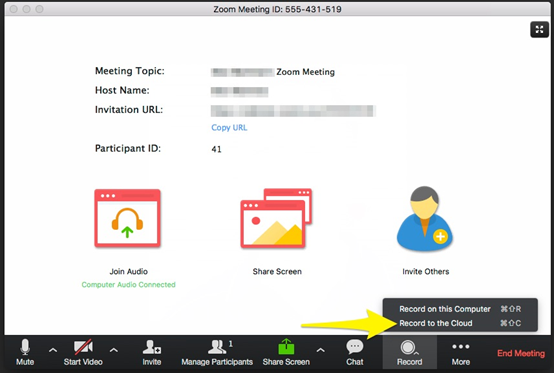
- To record your computer screen, click the “Share Screen” icon in the middle of the Zoom window. Select your main screen to record and press the “Share” button.

- Open your presentation file and display it to full screen mode.
- To end the recording, click red Stop Share button in the middle of the screen above.

- Then at the botton of the meeting window, click Stop Recording.

A pop-up window will ask for your confirmation, please click Yes.
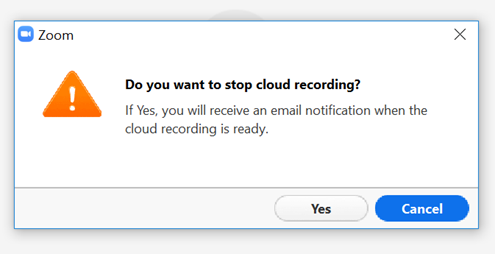
Zoom will send an email to the your Technion email address when the process is completed.
When receive the email, click the links to view your recording detail.
8. System and bandwidth requirements
The quality of the meeting session depends on the network connection of the participants and the resources that are being used during the meeting. Follow this link for Zoom systems and bandwidth requirements,
but in short – Sound < Screen Sharing << Video call. You better instruct other participants to turn off their video (and also mute them when you speak).
Thank you for your attention. For Zoom Support please go to https://support.zoom.us/
Should you have any other questions? Please contact the Helpdesk (https://helpdesk.technion.ac.il).