Division of Computing and Information Systems
Division of Computing |and Information Systems
  • Services
    • Artificial Intelligence (AI)
    • Backup and Restore
      • Backup Policy
      • Joining and Installation
      • Restoring data from backup
      • Mailbox Backup
    • CIS Shop
    • Cloud Computing Services
      • Office 365
        • SharePoint Online
        • Central email at the Technion – Cloud services Office 365
      • Microsoft Azure Service
      • Video Conference service using Zoom software
    • Communication Services
    • High Performance Computing (HPC)
      • HPC Services
        • Zeus CPU Cluster
        • Zeus DGX Cluster
      • HPC Resources
        • CPUs (Zeus) – Utilization Graphs
        • GPUs (Zeus) – Utilization Graphs
        • Active Table
      • HPC Documentation
        • Work procedure
        • Accounts
      • HPC Support
      • HPC Rates & Billing
      • HPC Software
        • Zeus Cluster Supported Software
      • IUCC HPC Cloud
    • Monitoring
    • Servers
      • Account Opening Guide for a computer account at the Technion
      • Authentication Services in Central Servers
      • Hosting physical servers
      • Hosting virtual servers
      • Virtualization
        • Server virtualization
        • Azure Virtual Desktop service for students
    • Software
      • Software Catalogue
      • Software Acquisition
      • Microsoft Software Licensing
    • Storage Solutions
      • Central storage
      • OneDrive Cloud Storage
    • Technion Email
      • Central email at the Technion – Cloud services Office 365
      • Mailing Lists
      • FAQ’s
    • SECTIGO Certificate System
  • Support
    • FAQ-Frequently Asked Questions
    • ESS/MSS System – Self-Service for Employees and Managers
    • Training Aids – Miscal Project
    • TeamViewer Installation
    • Remote Desktop Connection
    • Faculty Engineers
    • Macintosh Support
    • Antivirus
  • Information Security
    • User Information
    • Security alerts
    • Safe Surfing
    • Privacy in social networks
    • Password management guide
    • Password Management
    • File Encryption Guide
    • Tips for using Zoom
    • Avoid and report phishing emails
  • About
    • Directions to CIS
    • Contact Us
    • MyCIS
    • People
  • ע
Division of Computing and Information Systems > Set up email in Outlook for iOS mobile app
Set up email in Outlook for iOS mobile app

    Set up email in Outlook for iOS mobile app

    Note: If you have a work account that requires the Intune Company Portal app, install it from the App Store before setting up Outlook for iOS. Your IT admin may or may not also require you to Enroll your iOS device in Intune.

    Download Outlook for iOS from the iOS App Store and then open it. The icon looks like this:

    iOS Outlook app

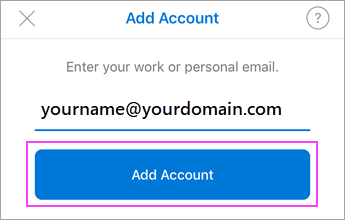
    If it’s your first time using Outlook for iOS, enter your full email address, then tap Add Account.

    If not, open the Menu > tap Settings Outlook app settings > Add Account > Add Email Account.

    Enter your email address

    Enter your email account password and tap Sign In.
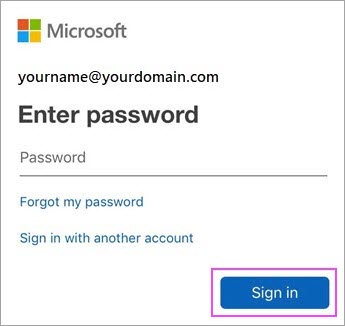
    Enter your Outlook.com password

    Accept any prompts for permission you may receive.

    Swipe through the features and you’re now ready to use Outlook for iOS!


    © All rights reserved to Division of Computing and Information Systems
    • Accessibility Statement (heb)
    • Phone Directory
    • Site Map
    Font Resize
    Accessibility by WAH